
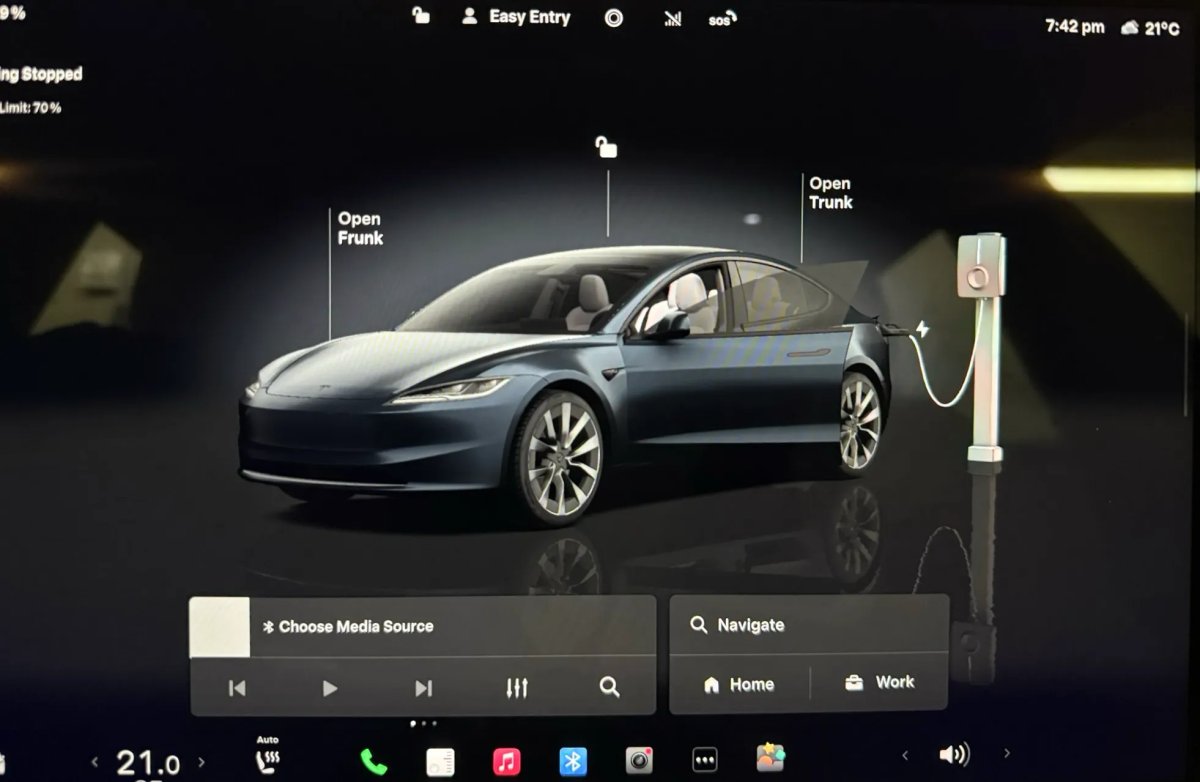
A Closer Look at Tesla’s Latest Charging Visualizations
Tesla introduced new charging visualizations in their recent update 2025.38, offering a unique perspective on the charging process for their vehicles. These visualizations are designed to provide users with a better understanding of how energy flows from the charger to the vehicle.
Regardless of the type of charger being used, whether it’s a Tesla charger or a third-party one, the charging visualizations will be displayed when a vehicle is connected.
The color of the charging cable changes to indicate different states of charging. For example, a blue cable signifies that the charger is establishing a connection, while a green cable indicates that the vehicle is actively being charged.
Let’s explore the various charging visualizations that Tesla has introduced:
Mobile Connector
When using a mobile connector, the visualization will show the Gen 2 Mobile Connector mounted to a post behind the vehicle. Currently, there is no specific display for the Gen 3 PowerShare Mobile Connector.
Wall Connector
Owners of a Wall Connector will see this charger displayed in the visualization, mounted on a pole behind the vehicle.
PowerShare
The PowerShare feature in the Cybertruck does not have a unique visualization for the Universal Wall Connector + PowerShare Gateway or the PowerShare Outlet Adapter at this time.
Supercharger
In addition to home chargers, Tesla also shows a Supercharger visualization when connected to their DC chargers. Currently, only V2/V3 Superchargers are displayed, but Tesla plans to add the V4 Supercharger style in a future update.
These visualizations offer detailed insights, such as the illumination of the word “Tesla” on Superchargers.
Third-Party Charger
A generic visualization is provided for third-party chargers, featuring a box with a light strip and a circle, mounted on a post behind the vehicle.
Intel Visualizations
While charging visualizations may appear more visually appealing on AMD-based vehicles due to their larger screens, they are also available on Intel vehicles. The visualization is displayed on the left side of the screen and can be panned, tilted, and zoomed in on.
Visualizations on Intel vehicles are slightly simplified compared to AMD ones, with fewer details like reflections and shadows.
It is possible that these new visualizations will also be incorporated into future updates of the Tesla mobile app, as the company tends to use consistent 3D models across their software platforms.