
Experience Tesla’s New Automations Feature in Action [VIDEO]
Last week, we got a sneak peek at Tesla’s automations feature, offering us a glimpse of what to expect.
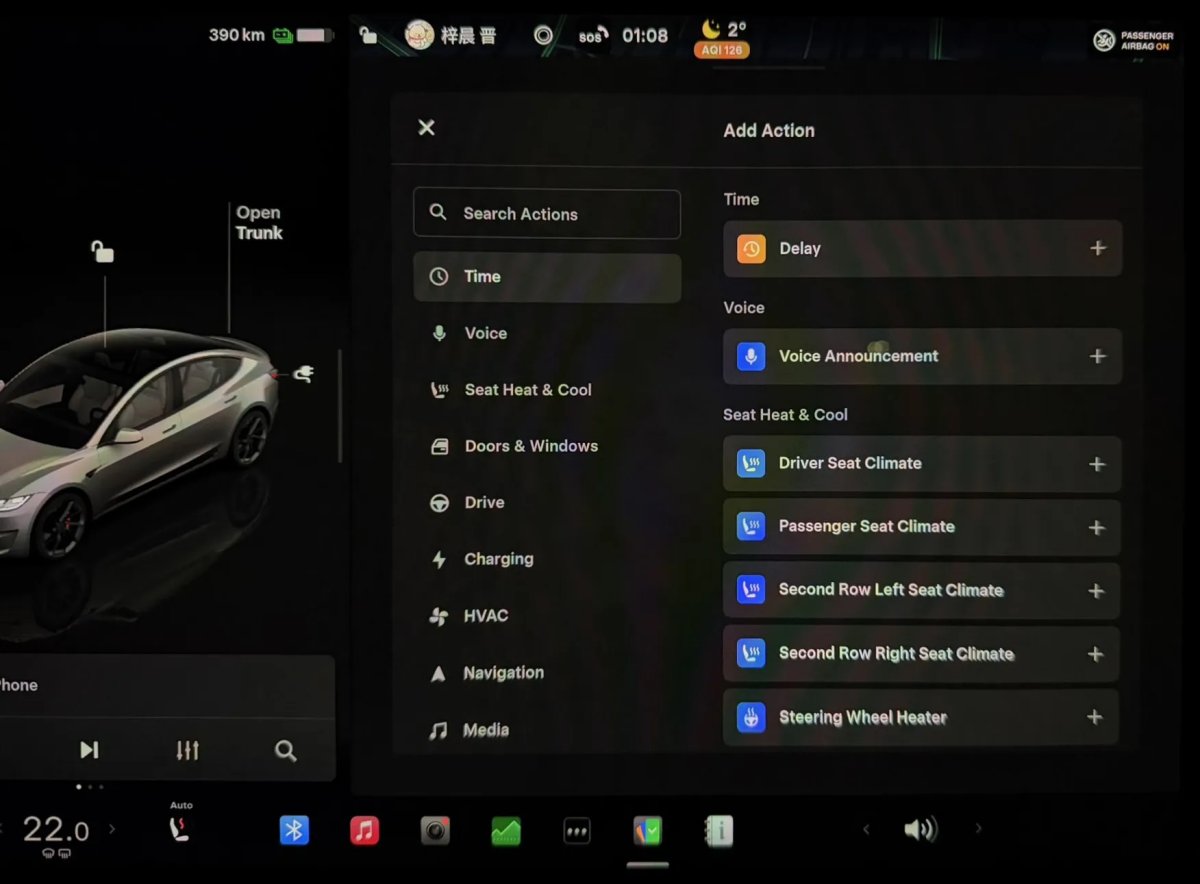
Now, as the feature begins to roll out in China, we’re getting our first hands-on experience with Tesla’s new Automations feature.
If you’re familiar with Apple Shortcuts or Android’s Tasker, Tesla’s Automations feature will provide you with similar capabilities for your car. Tesla offers a variety of triggers and actions that can be customized to suit your needs.
For example, do you want Bioweapon Defense Mode to automatically activate when the air quality is poor? Easy. Or perhaps you prefer different cabin temperatures for winter and summer. All of this is achievable with Tesla’s new automations feature.
How Automations Function
Automations operate on a simple “If This, Then That” logic, allowing you to automate certain actions in your car based on specific events.
The true power of this feature lies in the ability to combine any of the system’s available conditions and actions, creating truly personalized features.
Tesla has been using similar features internally for years, such as turning on the dome lights when the doors are opened or playing a sound effect when someone sits down. Now, users have access to this power for the first time.
Triggers
Triggers serve as the starting point for your automation process. You can set multiple triggers to initiate an automation, choosing from a wide range of options, including vehicle-internal triggers like gear changes, seat status, and door openings, as well as vehicle-external triggers like AQI, time of day, and light level.
You can even set up custom voice commands, enabling you to automate tasks using your voice, similar to Smart Assistant actions on Apple or Google Home.
To simplify the process, Tesla categorizes triggers and actions into groups such as Time, Environment, Voice, Seats, Seatbelt, and more.
In the Automations App, you can select multiple triggers for your automation. Once any or all of them are met, based on your selection, your actions will be executed. You are not limited to a single condition or action.
Below is a table listing all the available triggers in the automations feature.
|
Automation Triggers & Conditions |
|---|
|
Time |
|
Time |
|
Sunrise |
|
Sunset |
|
Environment |
|
Outside Temperature |
|
Outside Temperature Range |
|
Outside Air Quality |
|
Outside Brightness |
|
Voice |
|
Voice Trigger |
|
Seats |
|
Driver Seat |
|
Passenger Seat |
|
Second Row Left Seat |
|
Second Row Right Seat |
|
Any Seat Occupied |
|
Seatbelt |
|
Driver Seatbelt |
|
Passenger Seatbelt |
|
Second Row Left Seatbelt |
|
Second Row Right Seatbelt |
|
Any Seatbelt Buckled |
|
Any Seatbelt Unbuckled |
|
Doors & Windows |
|
Driver Door State |
|
Passenger Door State |
|
Rear Left Door State |
|
Rear Right Door State |
|
Driver Side Window State |
|
Passenger Side Window State |
|
Second Row Left Window State |
|
Second Row Right Window State |
|
Window Lock |
|
Door Child Lock State |
|
Frunk State |
|
Trunk State |
|
Drive |
|
Gear State |
|
Vehicle Speed |
|
Odometer |
|
Charging |
|
Charging State |
|
Charge Port |
|
Battery Level |
|
Front Wireless Phone Pad |
|
HVAC |
|
HVAC State |
|
Location |
|
Arrived at Location |
|
Left Location |
|
Arrived at Home |
|
Left Home |
|
Arrived at Work |
|
Left Work |
|
Navigation |
|
Navigation Destination |
|
Navigated to Home |
|
Navigated to Work |
|
Time to Arrival |
|
Distance to Arrival |
|
Phone |
|
Phone Call State |
Actions
Actions represent the outcomes of your automation process. Once your trigger conditions are met, your car will carry out the defined action or actions. There are over 50 different actions to choose from.
Interestingly, you can add time delays to your actions, ensuring that they do not occur immediately. For example, if you want your car’s dome lights to flash, you can turn them on, wait a moment, and then turn them off.
Actions also include voice alerts, allowing your vehicle to speak a message when a specific action is triggered, such as saying ‘welcome home’ or ‘car shifted to reverse’ when the vehicle shifts into reverse.
Similar to Triggers, Tesla has provided a search function for Actions and categorized them into related groups.
Tesla’s new Automations feature offers a variety of categories that allow users to create custom actions and triggers within their vehicle. These categories range from time-based actions to controlling seat climate, windows, charging, HVAC, navigation, media, phone, lights, and more. Some categories, like playing music, are specific to actions only.
Enabling and disabling automations is made easy with the Automations app, which displays all created automations in a grid view. Users can disable an automation without deleting it, and when an automation is triggered, a card will appear in the vehicle for quick access to enable or disable it.
While the Automations feature is powerful, Tesla has implemented guardrails to ensure safety and functionality. Certain actions, such as enabling Autopilot, are restricted, and automations cannot be triggered while Autopilot or FSD is active.
The release of the Automations feature has started in China, utilizing the country’s smart assistant capabilities. Adaptations may be needed before it integrates with Tesla’s voice commands and Grok, but a global release is expected in upcoming updates. This feature, along with the “Hey, Tesla” wake word and extended Dashcam footage, is anticipated to be one of Tesla’s major releases in the near future. sentence: Please let me know if you have any questions.
Do not hesitate to reach out if you need clarification.